

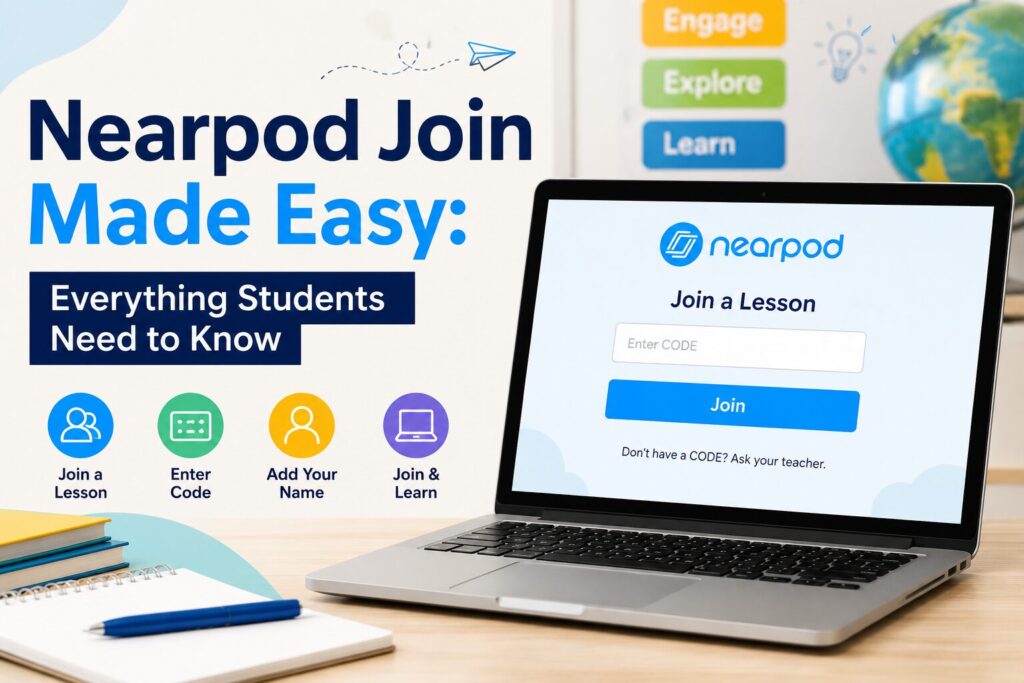
For many students, Nearpod Join is the first step before starting an online classroom activity. A teacher may share a code on the board, post a lesson link in Google Classroom, or send instructions through a school platform. Once students know where to enter the code and what to expect, the whole process becomes simple.
Nearpod is often used for interactive lessons, quizzes, polls, slides, videos, and short classroom activities. Instead of only watching or listening, students can answer questions, take part in activities, and follow the lesson on their own screen. Whether you are joining from a laptop, Chromebook, tablet, or phone, the basic process is usually the same.
Nearpod Join
Nearpod Join means entering a Nearpod lesson through a code or link given by your teacher. In most cases, the teacher creates the lesson first and then shares a Nearpod join code with the class. Students enter that code to open the correct lesson.
This code is important because it connects you to the exact activity your teacher wants you to complete. If your teacher is running a live lesson, you will follow along as the teacher moves through the slides. If it is a student-paced lesson, you may be able to move through the activity on your own.
The Nearpod code may be shown in different places depending on how your school works. Some teachers write it on the classroom board, while others post it online. You may also receive a direct Nearpod lesson link, which can take you straight to the lesson without typing the code manually.
How to Join a Nearpod Lesson
Joining a Nearpod lesson is usually quick. You do not need to be an expert with technology. You only need the correct code or link from your teacher.
Here is the simple process most students follow:
- Get the Nearpod join code from your teacher.
- Open the Nearpod student join page.
- Type the code carefully into the box.
- Enter your name if the lesson asks for it.
- Click or tap to join the lesson.
- Wait for the lesson to begin or continue.
Sometimes your teacher may share a direct link instead of a code. In that case, you only need to click the link and follow the instructions on the screen. If the lesson asks for your name, use the name your teacher will recognize. This helps your teacher see your answers and track your participation.
What Is a Nearpod Join Code?
A Nearpod join code is a short code that allows students to enter a specific Nearpod lesson. Think of it like a classroom key. Without the correct code, you may not be able to access the right lesson.
Each lesson can have a different code, so an old code may not work for a new class activity. If your teacher used Nearpod yesterday, that same code may not work today unless the teacher says it is still active.
Students usually get the Nearpod lesson code from:
- The classroom board
- Google Classroom
- Microsoft Teams
- Schoology, Canvas, or another school platform
- A teacher’s email
- A printed worksheet
- A direct classroom message
Always check the code before entering it. One wrong letter or number can stop you from joining the lesson.
Can You Join Nearpod Without an Account?
In many cases, students can join a Nearpod lesson without creating a personal account. The teacher may only ask students to enter a code and type their name. This makes it easier for students to join quickly during class.
However, some schools may require a Nearpod student login, especially if they want students to use a school email or learning account. This depends on the teacher’s settings and the school’s rules.
There are usually three common ways students join:
| Joining Method | What It Means |
|---|---|
| Nearpod join code | You enter a code shared by your teacher. |
| Lesson link | You click a direct link to open the lesson. |
| Student login | You sign in with a school account if required. |
The easiest thing to do is follow your teacher’s instructions. If your teacher gives you a code, use the code. If they give you a link, open the link. If they ask you to sign in, use your school account.
Joining a Live Nearpod Session
A live Nearpod session is controlled by the teacher. This means students do not move through the full lesson on their own. The teacher decides when to go to the next slide, start an activity, show a question, or review answers.
During a live session, you may see slides, videos, polls, quizzes, drawing activities, or open-ended questions. Your answers may be sent to the teacher, so it is important to stay focused and respond carefully.
In a live lesson, students should expect:
- The teacher to control the lesson pace
- Slides to change when the teacher moves forward
- Questions or activities to appear during the lesson
- Some answers to be reviewed in class
- The session to stay active only while the teacher is running it
If you accidentally close the tab or lose internet, you may need to enter the Nearpod code again. If the code does not work after reconnecting, ask your teacher if the session is still open.
Joining a Student-Paced Nearpod Lesson
A student-paced lesson works a little differently. Instead of waiting for the teacher to move each slide, students can go through the lesson at their own speed. Teachers often use student-paced lessons for homework, review work, independent practice, or assignments completed outside class.
In a student-paced Nearpod lesson, you may be able to:
- Move through slides yourself
- Answer questions at your own pace
- Pause and return later if allowed
- Complete the lesson at home
- Review information before submitting answers
This type of lesson is helpful when students need more time. You can read carefully, think about your answers, and finish the activity without feeling rushed. Still, you should complete the lesson before the deadline your teacher gives you.
Nearpod Join on Mobile, Tablet, and Computer
Students can usually use Nearpod Join on different devices. A computer or Chromebook is often the easiest option because the screen is larger and typing answers is more comfortable. Many schools use Chromebooks, so Nearpod works well for classroom activities.
To join Nearpod on computer, open your browser, go to the join page, enter the lesson code, and follow the instructions. Make sure your internet connection is working before the lesson starts.
Students can also join Nearpod on mobile or tablet. This can be useful if you are at home or do not have access to a laptop. A phone screen may feel smaller, but it can still work for simple activities, polls, and short answers.
Before joining on mobile or tablet, check these small things:
- Your battery is charged.
- Your Wi-Fi or data connection is stable.
- The screen is bright enough to read.
- The browser or app is working properly.
- You keep the lesson page open while working.
If slides look too small on your phone, try turning the device sideways. This can make the lesson easier to view.
Why Is My Nearpod Join Code Not Working?
Sometimes students enter the code and still cannot get into the lesson. This can be frustrating, especially when class has already started. The good news is that most Nearpod code not working problems are simple to fix.
A Nearpod join code may not work because:
- The code was typed incorrectly.
- The lesson has already ended.
- The code has expired.
- The teacher has not started the session yet.
- You are using an old code.
- Your internet connection is weak.
- Your browser needs to be refreshed.
- Your school account may be required.
Start by checking the code carefully. Make sure you did not mix up similar letters and numbers. If the code still does not work, refresh the page and try again. If you are joining from a link, open the link again from the place your teacher shared it.
If nothing works, ask your teacher for a new code or updated link. The teacher can confirm whether the session is still active.
What to Do If Nearpod Is Not Working
There may be times when Nearpod not working has nothing to do with the code itself. Your device, browser, internet connection, or school login may be causing the issue.
Here are a few easy fixes students can try:
- Refresh the browser page.
- Check your Wi-Fi connection.
- Close extra tabs if your device is slow.
- Try another browser if your teacher allows it.
- Reopen the Nearpod lesson link.
- Restart your device if nothing loads.
- Ask your teacher if the lesson is still open.
Do not keep guessing for too long. If you have tried the basic fixes and still cannot join, tell your teacher. They may be able to send another Nearpod lesson link or help you join through a different method.
Tips for Students Before Joining a Nearpod Lesson
A little preparation can make the lesson smoother. Before class starts, keep the Nearpod lesson code ready so you do not waste time looking for it.
Here are some simple tips:
- Join a few minutes early if your teacher allows it.
- Use your real name or the name your teacher expects.
- Keep your device charged.
- Make sure your internet is working.
- Read the teacher’s instructions before clicking anything.
- Stay on the lesson page until the activity is finished.
If your teacher is using Nearpod for a quiz or graded activity, take your time and answer carefully. Your teacher may be able to see your responses, so treat the lesson like regular classwork.
Classroom Etiquette While Using Nearpod
Nearpod is made for learning, so students should use it properly. If your teacher shares a code with your class, do not send it to people who are not part of the lesson. The code is meant for your classroom activity only.
Good student habits include:
- Using your correct name
- Paying attention during the lesson
- Giving honest answers
- Avoiding joke responses
- Not leaving the session without a reason
- Asking for help when something does not load
These small habits help the class run smoothly and make it easier for the teacher to support everyone.
Quick Student Reminder
Nearpod Join is simple once you understand the steps. Your teacher shares a code or link, you enter the lesson, add your name if needed, and start the activity. Whether you are joining a live Nearpod session or completing a student-paced Nearpod lesson, the main thing is to use the correct code and follow your teacher’s instructions.
Once you know how the Nearpod join code works, joining a lesson becomes quick and easy from almost any device.